Voice-to-Note: Dictate Therapy Notes with Voice Transcription
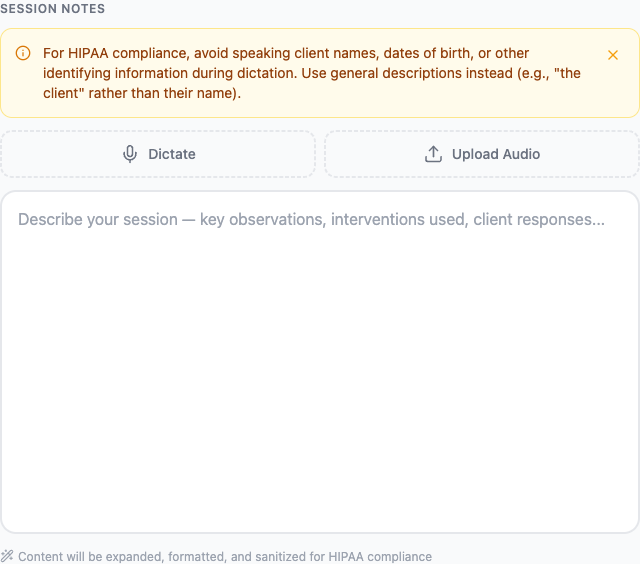
Dictate session observations with your microphone or upload audio files. WellNotes transcribes your voice and generates structured clinical notes automatically.
Last updated: March 2026
Voice transcription lets you dictate session observations instead of typing, cutting documentation time to under 90 seconds per note. Speak naturally about what happened in the session — WellNotes transcribes your audio and uses it to generate a structured clinical note. You can record live through your browser microphone or upload an existing audio file (MP3, WAV, M4A). Audio is processed in real time and is never stored.
Step-by-step
- 1
Open the Note Editor
Navigate to the Note Editor by clicking "New Note" from the dashboard.
- 2
Click the microphone icon
In the observation input area, click the microphone icon to start recording. Your browser will request microphone permission — click Allow.
- 3
Speak your observations
Dictate your session notes naturally. Describe what the client reported, interventions used, observations, and next steps. Speak clearly but there's no need to slow down.
- 4
Stop recording
Click the microphone icon again (or the stop button) to end the recording. WellNotes transcribes your speech and populates the observation field automatically.
- 5
Upload audio (alternative)
Instead of recording live, click the upload icon to submit an existing audio file (MP3, WAV, M4A). Transcription works the same way.
- 6
Review and generate
Check the transcribed text for accuracy, make any corrections, then select your template and generate the note.
Tips
- Speak in a quiet environment for best transcription accuracy.
- You can edit the transcription before generating the note if any words were misheard.
- Voice dictation saves significant time — most clinicians complete note documentation in under 90 seconds.
Frequently asked questions
Is the audio recording stored?
No. Audio is transcribed in real-time and the recording is not stored. Only the transcribed text (and the resulting note) are saved.
Which browsers support voice recording?
Voice recording works in Chrome, Edge, Safari 14+, and Firefox. If your browser doesn't support the Web Speech API, you'll see the upload option instead.
What audio file formats are supported for upload?
MP3, WAV, M4A, and WebM are supported. Maximum file size is 25MB.
Related articles
Still have questions? Email our support team — we typically respond within one business day.