WellNotes Account Settings, Plans & Billing Management
Manage your WellNotes subscription, upgrade or downgrade plans, update payment methods, and access billing history. Cancel anytime with no hidden fees.
Last updated:
WellNotes offers two plans: Starter ($27/month, 50 notes/month, PDF and CSV export, voice dictation) and Professional ($38/month, unlimited notes and custom templates; PDF and CSV export are included in both plans). Your first WellNotes subscription starts with a 3-day free trial. You are not charged until the trial ends. One free trial per person and per card. If you have had a WellNotes trial or subscription before, your paid plan starts at checkout. If your card has already been used for a WellNotes trial, no trial starts and you are not charged, and you can then subscribe without a trial. You can upgrade, downgrade, or cancel anytime from your Account page. All billing is handled securely through Stripe, and cancellations take effect at the end of your current billing period, so you keep full access until then.
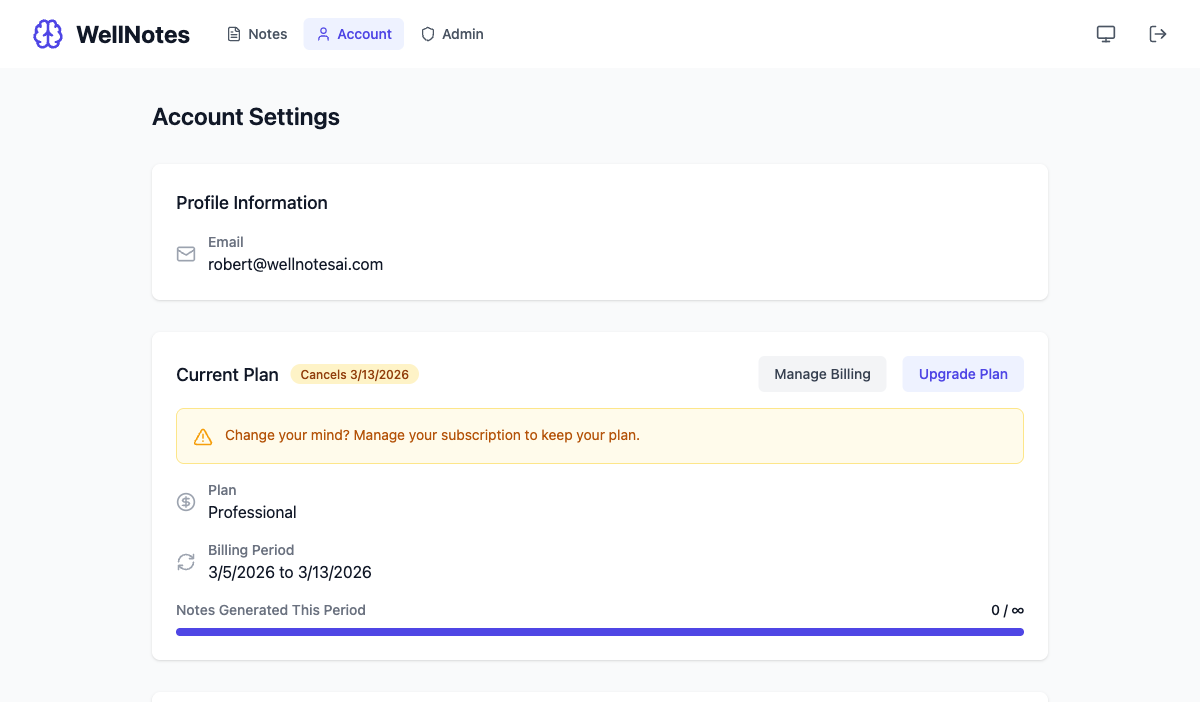
How do you manage your account and plan?
- 1
Open Account Settings
Click your profile icon in the top-right header, or navigate directly to /account.
- 2
View your current plan
The Account page shows your active plan, renewal date, and whether your subscription is active, pending cancellation, or past due.
- 3
Upgrade your plan
Click "Upgrade Plan" to view available plans and pricing, then choose a plan. Your plan changes right away, after you confirm. On the same billing interval, your renewal date stays the same and the prorated difference is added to (or credited on) your next bill. Switching from monthly to annual billing charges the annual price today, minus a credit for the unused part of your month. Switching from annual to monthly billing turns the unused part of your year into account credit that pays your monthly bills.
- 4
Manage billing
Click "Manage Billing" to open the Stripe billing portal. From there you can update your payment method, view invoices, or cancel your subscription.
- 5
Change your password
In the Password section, enter your current password and a new password, then click "Update Password".
- 6
Auto-clear notes older than 24 hours (optional)
In the Data Storage section, switch on "Auto-clear notes older than 24 hours" to have older notes removed from this browser automatically. It is off by default. Before it turns on, you are shown how many notes in this browser will be removed and asked to confirm. The setting is saved to your account, so it also removes notes older than 24 hours in any other browser or device where you use WellNotes, the next time WellNotes is open there.
- 7
Toggle dark mode
Click the theme toggle (sun/moon icon) in the header or on the Account page to switch between light and dark mode.
What tips save time?
- Subscription changes take effect immediately for upgrades.
- Cancelling an active subscription takes effect at the end of your current billing period, and you keep access until then.
- Cancelling a paused subscription ends it right away. Access is already off while it is paused, and you will not be charged again.
- If a renewal payment fails, your account will show "Past Due". If you have paid for WellNotes before, you keep access while we retry the payment. If the first payment after your free trial fails, note generation, voice dictation and exports stay unavailable until the payment goes through.
- While a subscription is paused you are not charged, and note generation, voice dictation and exports are unavailable until it resumes. You can pause once every 12 months.
- You can resume a paused subscription early from your Account page. If a billing date passed while it was paused, resuming charges your card for a new billing period, and access returns once that payment goes through.
Frequently asked questions
Can I cancel anytime?
Yes. Cancel anytime with Cancel plan on your Account page or from the billing portal. You keep access until the end of your current billing period. A paused subscription ends right away instead, since its access is already off.
How do I get a refund?
Contact us at support@wellnotesai.com within 7 days of your charge for a refund request.
Do you offer annual billing?
Yes. Annual plans are available at a discounted rate on the Pricing page.
How does "Auto-clear notes older than 24 hours" work?
Auto-clear is off by default. When you turn it on from the Data Storage section of your Account page, any saved note that has not been edited in the last 24 hours is permanently removed from the browser. WellNotes checks when you open the app, every 15 minutes while it is open, and when you return to its tab. A note that is open in the editor is not cleared while it is open. Note ages are checked against the WellNotes server clock, and if your device clock is more than 5 minutes off, auto-clear pauses until 24 hours after WellNotes sees the correct time on that device again. The same pause applies after notes are saved while WellNotes could not confirm the device clock, for example while offline. Your clients, custom templates and style preferences are kept. WellNotes does not keep a copy of your notes, so cleared notes cannot be recovered: copy or export anything you need first. The setting is saved with your account, so it applies in every browser where you sign in. This is in addition to the usual clearing: logging out, being signed out after 15 minutes of inactivity, or your session ending still removes all saved notes and drafts from the browser.
Related articles
Still have questions? Email our support team (we typically respond within one business day).