Customize Note Tone, Length & Style for Clinical Documentation
Adjust clinical note tone (Standard, Empathetic, Brief, Comprehensive), length (Short, Medium, Long) and section distribution to fit your practice style.
Last updated:
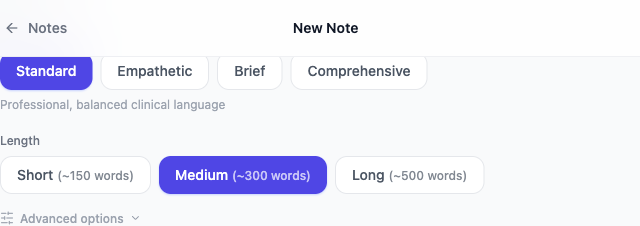
Every clinician has a preferred documentation style. WellNotes lets you control the tone, length, and structure of your generated notes so they match your clinical voice. Tone options are Standard, Empathetic, Brief, and Comprehensive. Length options are Short (about 150 words), Medium (about 300 words), and Long (about 500 words). Distribution options are Front-loaded, Balanced, and Back-loaded.
How do you change note tone, length and style?
- 1
Find Note Style
In the Note Editor, the "Note Style" section shows Tone and Length directly. The "Advanced options" toggle below them opens Distribution and additional controls.
- 2
Choose a tone
Select Standard (professional, balanced clinical language), Empathetic (warm, person-centered language), Brief (concise, clinically relevant facts only), or Comprehensive (thorough, detailed observations).
- 3
Set note length
Choose Short (about 150 words), Medium (about 300 words), or Long (about 500 words).
- 4
Adjust distribution
Open "Advanced options" under Note Style. Front-loaded puts more detail in earlier sections, Balanced spreads detail evenly across all sections, and Back-loaded puts more detail in later sections.
- 5
Save as default
To keep these as your default for this note type, open "Advanced options" and click "Save as Default". Defaults are saved in this browser and cleared when you log out.
What tips save time?
- Standard tone is a good default for insurance-submitted documentation.
- Long length is useful for complex cases or treatment plan documents.
- You can change style settings per note without affecting your saved defaults.
Frequently asked questions
Are style preferences saved per template or globally?
Per note type. Style changes apply to the note you are writing. To keep them as your default for that note type, open "Advanced options" and click "Save as Default". Defaults are saved in this browser and cleared when you log out.
Related articles
Still have questions? Email our support team (we typically respond within one business day).